
Generated by the actual analyzer
Inspect a complete sample action plan
This CSV was downloaded from the public analyzer using its built-in fictional sample in both tenant slots. It contains six rows, including an illustrative owner, next action and verification entry. It is an output format example, not proof of two real tenants or an approved route.
Download the actual six-row action-plan CSV ↓
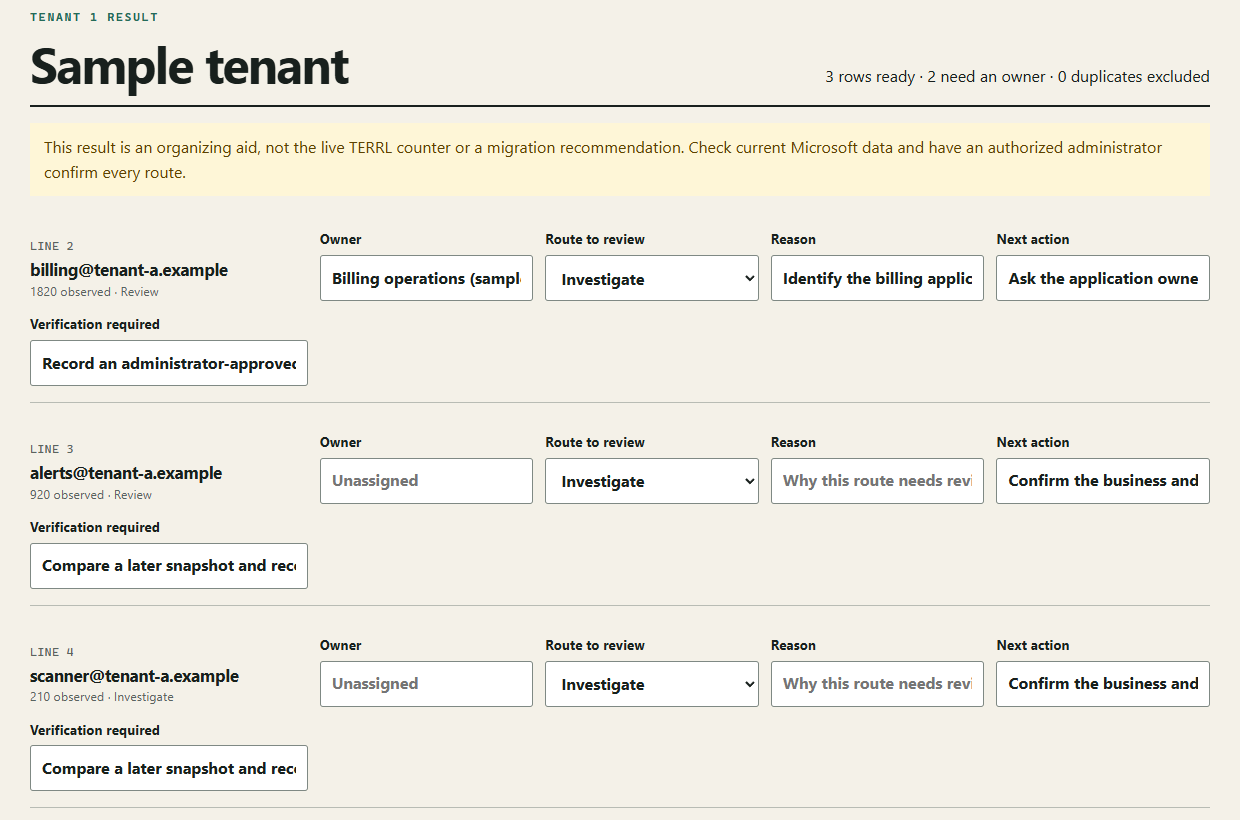
- Open the analyzer and select Use the built-in sample.
- Enter an owner, reason, next action and verification requirement. Leave the route as Investigate until an administrator makes a decision.
- Select Analyze a different tenant, then use the sample again to inspect the export controls. The interface identifies repeated/sample data as an unqualified completion.
- Choose Download CSV action plan. The export carries review fields and a generation timestamp. It does not execute a migration.
For a real run, use two distinct exports you are authorized to process. For saved records and history, review the workspace trial and plans.
Export the top-sender ranking
Microsoft’s current CSS-Exchange script can query message trace data, analyze an existing export, and write its TopSenders ranking to CSV. Run it only with an authorized Exchange Online account and follow Microsoft’s current prerequisites.
$result = .\Get-TerrlExternalRecipientEstimate.ps1 -AcceptedDomain "contoso.com", "contoso.onmicrosoft.com" -CsvPath ".\TerrlTopSenders.csv"The exported ranking helps identify contributors. Compare it with Get-LimitsEnforcementStatus when you need the live observed value, threshold, verdict, or enforcement state.
Supported input contract
| Field | Required | Recognized headings | Use |
|---|---|---|---|
| Sender/source | Yes | Sender, SenderAddress, Source, From, Mail From, Domain, Sender Domain | Creates one action-plan row per source. |
| Count | No | Count, Recipient Count, External Recipients, Message Recipient Pairs, Volume | Adds observed-volume context. |
| Status | No | Status, State, Enforcement State, Quota State, Blocked | Preserves a supplied status label. |
| Window | No | Window, Date, Timestamp, Start Date, End Date, Observed At | Preserves the observation window. |
Download a synthetic input template. The example.test rows are illustrative and contain no customer data.
Import checklist
- Save the file as UTF-8 CSV with one header row.
- Keep at least one non-empty sender or source column.
- Remove duplicate column names and files over 5,000 data rows.
- Name the tenant locally, select the CSV, and map the sender column if asked.
- Review every owner, route, next action, and verification field before export.
Common questions
What is the minimum required column?
A sender or source column is required. SenderOwner recognizes common headings such as Sender, SenderAddress, Source, From, Domain, and Sender Domain.
Are count, status, and window required?
No. They add context when present, but a sender or source value is the only required field for building the draft.
Does SenderOwner upload the CSV?
No. The current analyzer parses the original CSV in your browser and does not send file names, contents, row values, sender addresses, or recipient addresses to SenderOwner.
What happens when a header is not recognized?
The analyzer asks you to choose the column that identifies the sender or source. It does not guess silently.
Is the CSV estimate the live TERRL counter?
No. Microsoft states that the support-script result is an estimate. Get-LimitsEnforcementStatus remains the live source for ObservedValue, Threshold, Verdict, and EnforcementEnabled.
Sources
- Microsoft CSS-Exchange: Get-TerrlExternalRecipientEstimate — checked 2026-09-09.
- Microsoft Learn: Exchange Online limits — checked 2026-09-09.